Core Terminology
This lesson reviews the most important foundational knowledge needed to learn Git. Understanding these fundamentals will ensure your future learning will proceed smoothly.
The 3 Sections of a Git Project
When working on a software project, create a folder on your computer that holds your project files: code files, configuration files, image files, etc. Most everything related to your project is going to live in that folder. When you first tell Git to start tracking your project, what you're actually doing is adding special Git functionality to that particular folder.
So how does this all work?
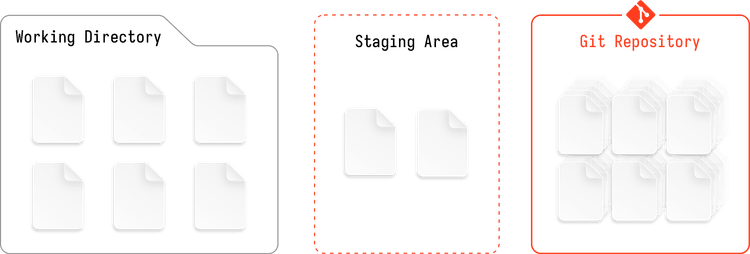
After you tell Git to start tracking your project, behind the scenes, Git segments your project into three sections: the working directory, staging area and the repository itself.
The Working Directory
The actual files on disk that you directly modify. If you were not using Git, you would consider the folder containing your project files the "working directory."
Staging Area
Information about which file changes will be included in your next commit.
The Repository
The Git repository is a database that contains snapshots of all files, along with their entire history of changes. The repository also contains other data about your project including branches and additional metadata about files. This database is actually contained within a hidden directory in the root of your project called .git.
File States
There are 3 states that a tracked file within your Git repository can be in at any given time. Files reside in one of these 3 states and the state changes depend on what action has been taken on the file.
Committed
The default state of files within your project. "Committed" means the file has been permanently stored in your Git repository. Files that haven't been modified but have been snapshotted by Git in the past are considered committed.
Modified
The file has been modified since the last time Git took a snapshot. Think of this as files you're currently working on.
Staged
The modified file(s) have been marked for inclusion in your next snapshot. Staging is important because you don't always want every single file modification to be included in a snapshot. Staging files allows you to pick and choose which files are included in your upcoming permanent snapshot.
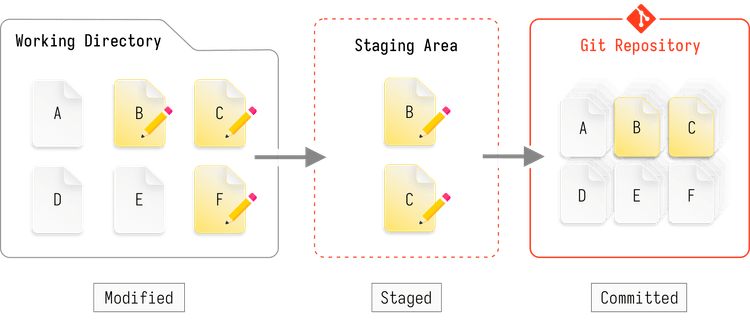
In the working directory files B, C and F are in the modified state. Files B and C are then marked for inclusion in the next commit and moved to the staging area. In doing this, their state becomes staged. When it's time to permanently save a snapshot of files B and C, they are committed to the repository and marked committed. We would also say that files A, D and E in the working directory are in the committed state since they have been previously snapshotted, but are not currently modified.
Commits
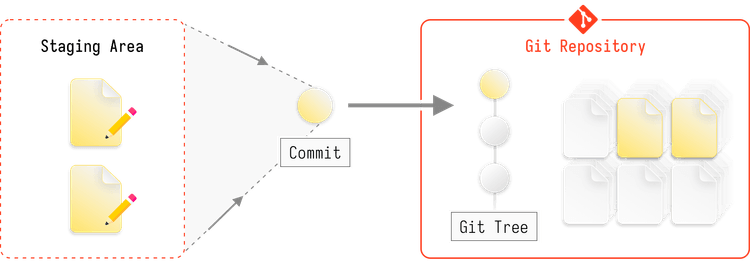
The official term for snapshots is commits. When files in the staging area are moved to the repository we say that those files were committed. Git keeps track of which files were committed at the same time and bundles them together in a container called a commit. So not only does Git keep track of all file versions in the repository, it also keeps track of commits.
Commits are a useful way to keep track of multiple file changes that are related to one another. In practice, bundling groups of file changes together allows you to easily track your project progression. Oftentimes, commits encompass a single software feature or bug fix.
Commits also build on each other in a linear fashion. Subsequent commits are linked to the most recent commit to form a chain commonly called the Git tree. As a project progresses, the tree grows, and when contributors branch off to work on features, commit chains grow off of the main tree to form branches.
Worried about forgetting a term?
Don't sweat. In upcoming lessons, hover over any term with a dotted underline to get a quick refresher.
Here is an example! staging area.